 Doctor Games
Play your own songs as a rhythm game: turn any song into a level
Most rhythm games only let you play the songs someone else charted. Here is how to make a playable level from a song on your own phone in a few minutes — no computer, no timing points — and how to make it good enough to share.
This guide uses Rhythm Guru, a free rhythm game for iOS and Android that we make. The ideas — clean audio, a correct beat grid, a quick playtest before you publish — apply to any beatmap editor.
What you need
- An iPhone or Android phone with Rhythm Guru installed (free).
- A song file on the phone: MP3, M4A, WAV or FLAC, up to 10 minutes long. Streaming-only tracks you cannot save as a file will not work.
- An internet connection while the level is being built.
Do I need a PC or a beatmap generator?
No. On a computer, playing your own music usually means charting it by hand in a desktop editor (osu!, for example) or running a beatmap generator script on an MP3. Rhythm Guru does the generation on its servers and gives you a map editor on your phone for the finishing touches — the whole process, from MP3 to a published level with a leaderboard, happens in the app.
Step 1. Add your song
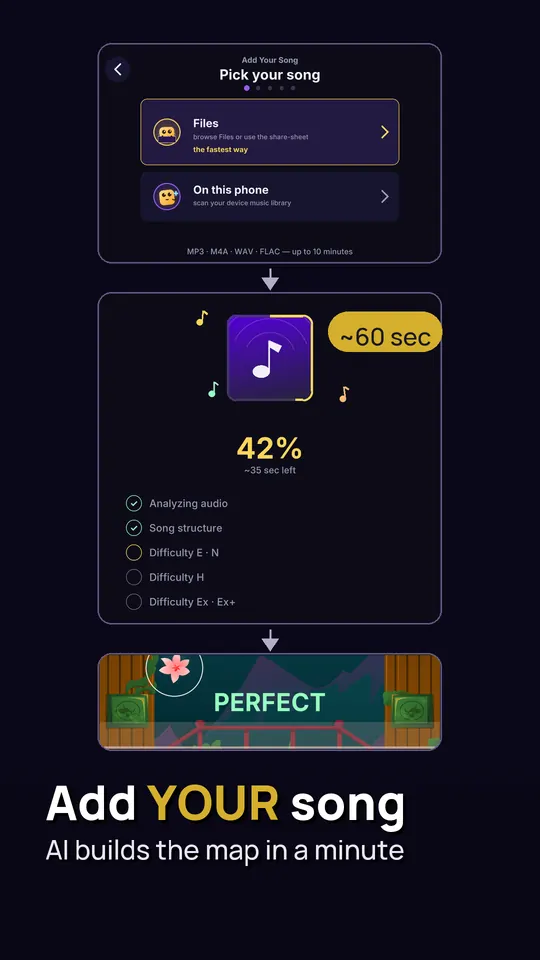
On the Home screen tap Add Your Song (the + card), then Pick your song. You get two ways in:
- Files — browse the Files app, or share an audio file into Rhythm Guru from any other app. This is the fastest route if the song is in a download folder or a chat.
- On this phone — scans the music library on the device.
Step 2. Let the game build the level
The game analyses the audio, finds the tempo and the song's structure — intro, verses, drops — and places notes for all five difficulties at once: Easy, Normal, Hard, Expert and Expert+. That usually takes about a minute; a song nobody has added before can take two or three. You can keep using the app while it works.
Free players can generate 10 maps a month; Premium removes the limit. The remaining allowance is shown on the Add Your Song screen.
Step 3. Play it once on Normal
Before editing anything, play the level once on Normal. You are listening for two things: do the notes land on the beat, and do the busy parts of the song feel busy? If both are true, the map is ready — go to step 5. If notes feel consistently early or late, that is a grid problem (step 4a). If a section feels wrong but the rest is fine, that is a note problem (step 4b).
Tip: if every song you play feels slightly late, the issue is probably your headphones, not the map — calibrate Settings → Input offset first. Our timing guide explains how.
Step 4. Fix it in the editor
4a. Correct the beat grid
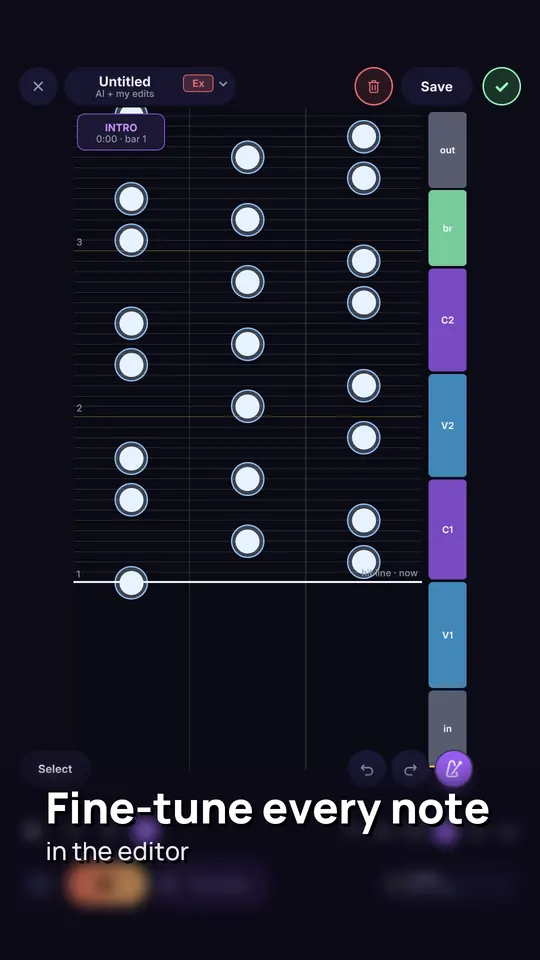
Open the map in the editor and tap Grid offset. The offset is where beat 1 of the song sits on the track. By default it is set automatically from tempo detection. Turn on Metronome click on grid lines — quarter notes, louder on beat 1 — and play the song: if the clicks drift away from the drums, pause on a clear downbeat and use Set here. Notes stay on their grid lines and move with the grid, so one correction fixes the whole map.
4b. Move, add or delete notes
Scrub to the section that felt wrong. Typical fixes: delete notes that follow a quiet background sound, add notes on a vocal hook the generator under-played, and move a note to another lane to break up an awkward pattern. Keep easier difficulties sparse — Easy and Normal should follow the strongest beats, not every sound.
Known weak spots for automatic mapping are rap (the rhythm lives in the words, not the drums) and instrumental tracks without a clear beat. Those songs benefit most from a few minutes of editing.
Step 5. Publish to the Community
Tap Publish to Community and hold for a second to confirm. Until you publish, a map is private and only you can play it. After publishing it appears in Community with its own World, Country and Friends leaderboards, and other players can ♥ it.
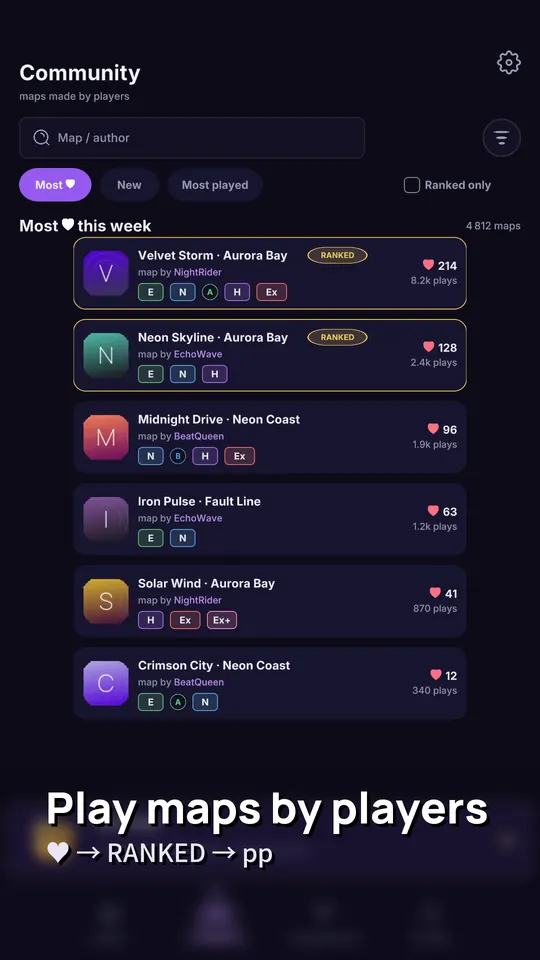
When a map collects 100 ♥ it becomes RANKED automatically. Ranked maps surface first in search, count for the world ladder and award pp, the same as licensed songs. How pp is calculated is explained in ranks D–SS and pp.
Only publish music you have the right to share. Maps can be removed under the Platform Rules or after a valid copyright notice.
Make your level worth playing
- Start with a clean file. A high-quality file with a clear drum track maps better than a live recording or a low-bitrate rip.
- Trim the silence. Long fade-ins and outros make the level feel empty; a version that starts near the music works best.
- Check the title and artist. Both are read from the file's tags and both are required to publish. Players search Community by song and author, so fix a tag that says "Track 01".
- Play your own leaderboard. Set a score first; people are more likely to try a map that already has someone to beat.
Questions about limits, offline play or Premium are answered in the Rhythm Guru FAQ.